
EX2 Ultra Reborn: Install OpenWrt on a WD My Cloud EX2 Ultra with a Modern NAS Dashboard
Step-by-step guide to installing OpenWrt on the WD My Cloud EX2 Ultra with EX2 Ultra Reborn. Keeps your RAID 1 data, quiets the fan, adds a modern dashboard.
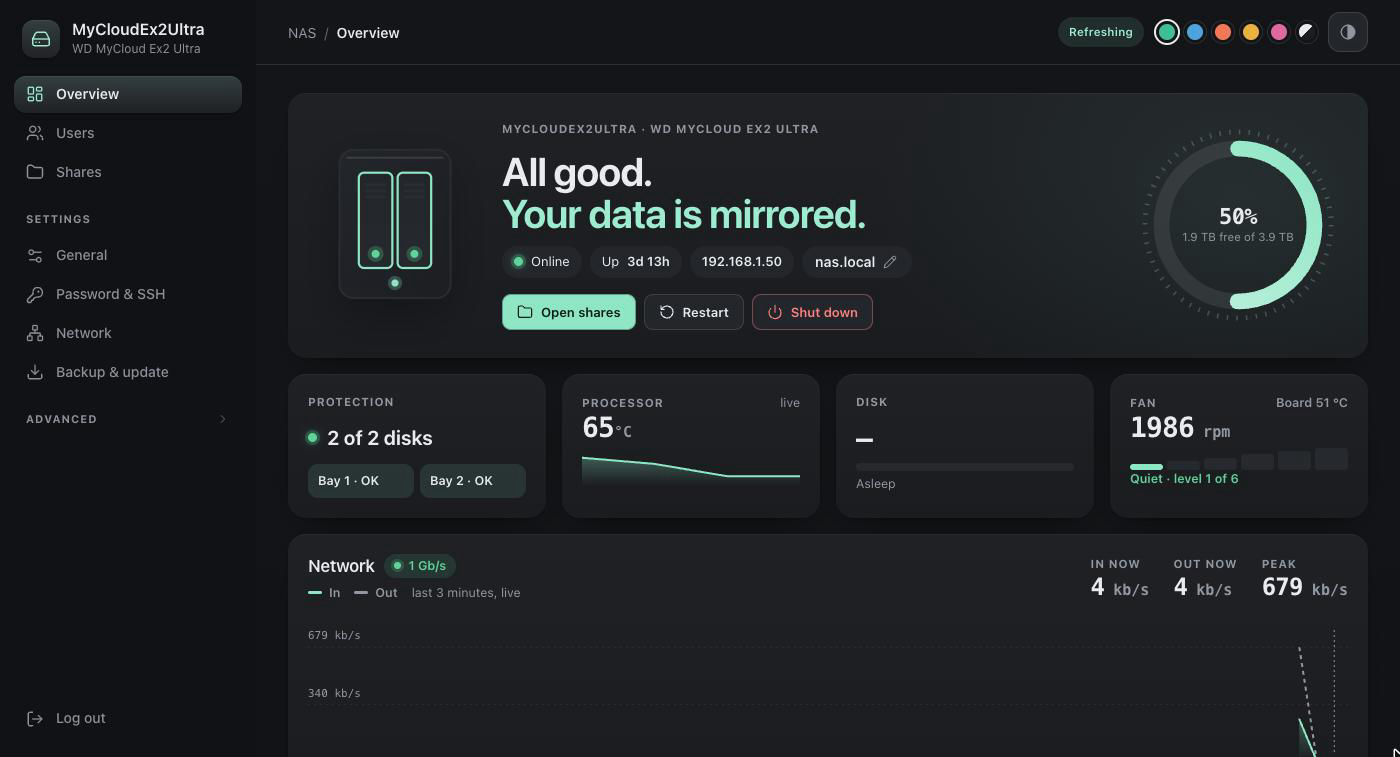
Why replace WD's firmware on the My Cloud EX2 Ultra?
Meet my EX2 Ultra: two 4 TB WD Reds in a mirror, quietly holding the family's photos, documents and Mac backups for years. Nothing was wrong with it, but a few things were nagging me:
 It sounded like a tiny jet engine. The fan sat around 8,800 rpm for most of the day.
 The disks never got a chance to sleep. Something in the background was always poking them, so two drives spun 24/7 just to sit there.
 WD My Cloud support has an end date. WD lists support for the EX2 Ultra until December 2027. After that, it's an unpatched box on your network.
 It carried a lot of luggage. Cloud services, media servers, indexers and update daemons, all on 1 GB of RAM, when I only wanted two things: shared folders and Time Machine.
The good news: OpenWrt officially supports the WD My Cloud EX2 Ultra. Most people know OpenWrt as router firmware, but it's small, well maintained, and has everything a simple NAS needs. So, brain transplant time.
WD firmware vs OpenWrt on the EX2 Ultra
| Before (WD firmware) | After (OpenWrt + this project) |
|---|---|
| Fan around 8,800 rpm | Fan around 1,900 rpm, using WD's own temperature rules |
| Disks spinning all day | Disks asleep after 10 quiet minutes |
| Lots of services I never used | File sharing + Time Machine, that's it |
| 1 GB of RAM, busy | About 50 MB used, the rest free (yes, megabytes) |
| A warm little box | Processor idles around 65 °C, under 70 °C |
| Updates ending | OpenWrt security updates, one-click upgrades |
| Dated, cluttered web interface | A modern NAS dashboard: clean, dark or light, works on your phone |
On top of that:
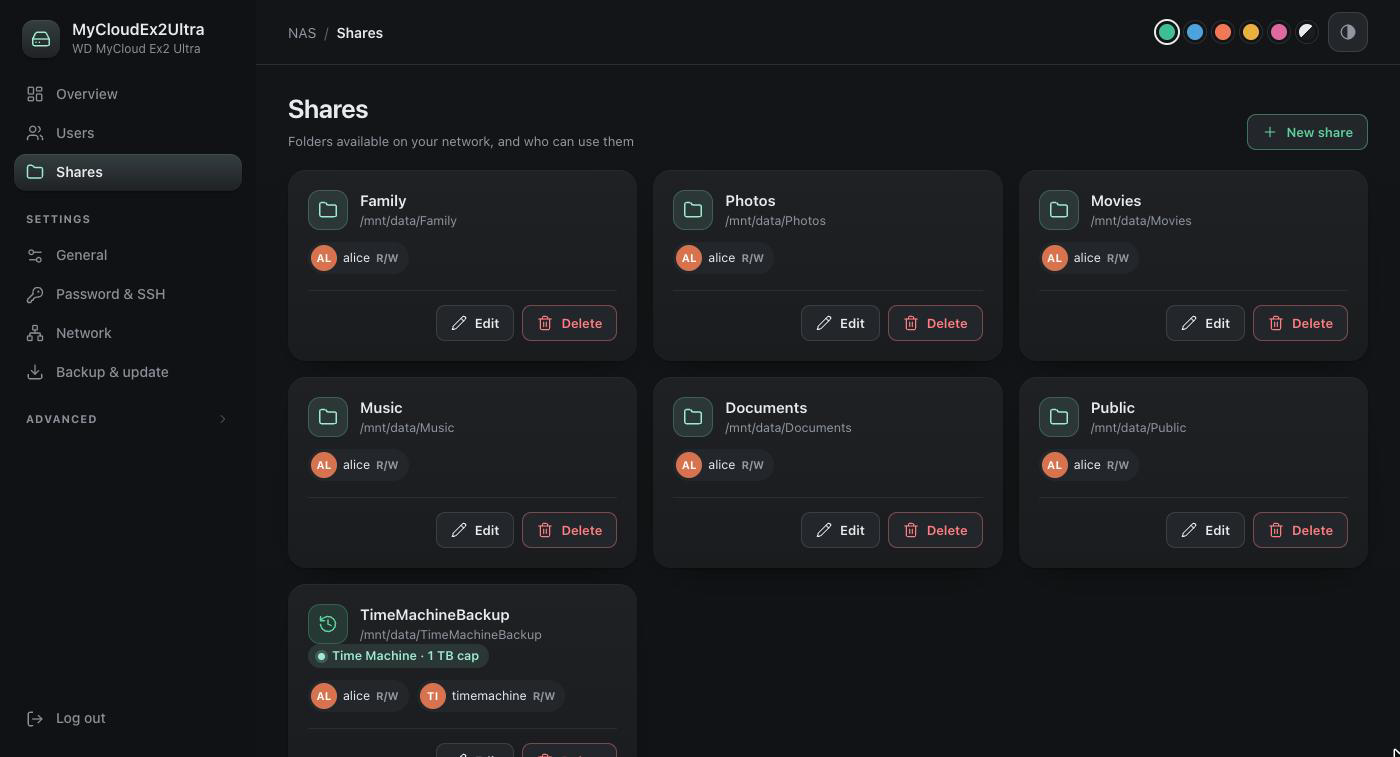
 E-mail alerts when something matters: a degraded mirror, a hot or failing disk, full storage, a stopped fan, an unexpected restart.
- Disks that finally sleep. They spin down after 10 minutes and stay down: the dashboard, fan control and health checks never wake them just to read a temperature.
 A real power-off button and Wake-on-LAN to bring it back. It can even switch itself off after two idle days.
 USB drives are shared automatically, and a "cold storage" card copies chosen folders to a USB disk.
 Nothing exposed to the internet. No cloud, no public IPv6.
Before you start
You'll need:
- The WD My Cloud EX2 Ultra, still on WD firmware, plugged into your router
- Two disks in WD RAID 1 (the setup reuses that mirror, so your files stay put)
- A Mac, a Linux PC or a Windows 10/11 PC on the same network
- About an hour, most of it waiting
 Only for the My Cloud EX2 Ultra. Other WD models (Mirror Gen2, EX2100, EX4100, PR2100, …) use different hardware. The scripts check the model first and refuse to run on anything else. And please back up anything you can't lose before replacing any operating system.
Which OpenWrt version? I installed OpenWrt 25.12.5 first (the version proven on real EX2 Ultra hardware), then upgraded to 25.12.6 with one click from the dashboard at the end. This guide does exactly the same.
Part 1: Get your computer ready
1.1 Open a terminal
A terminal is a window where you type commands. Don't worry, you'll only copy and paste.
 Mac: press
Cmd+Space, type Terminal, press Enter. Windows: press the Start button, type PowerShell, press Enter.
 Two things that confuse everyone the first time: when a command asks for a password, nothing appears while you type. That's normal, just type it and press Enter. And the first time you connect to a device, it asks
Are you sure you want to continue connecting (yes/no)?. Type yes and press Enter.
1.2 Get the project
Copy and paste into the terminal (works on Mac and Windows):
git clone https://github.com/Argentron-Technologies/ex2-ultra-reborn.git
cd ex2-ultra-reborn
No git? Open the GitHub page, click the green Code button → Download ZIP, unzip it, and open your terminal in that folder.
1.3 Find the NAS's IP address
Open your router's admin page and look for MyCloudEX2Ultra in the list of connected devices, or check the Network section of the WD dashboard. You're looking for something like 192.168.1.50. Everywhere below, replace <NAS IP> with that address.
1.4 Turn on SSH on the My Cloud
SSH lets your computer send commands to the NAS. In the WD dashboard, go to Settings → Network, switch on SSH, and set a password. The SSH user name on WD's firmware is sshd.
Part 2: Check the NAS and back up its firmware (10 minutes)
This only reads from the NAS. It checks it really is a WD My Cloud EX2 Ultra (WD model number BVBZ, 2 drive bays, the exact flash layout) and saves a full copy of the WD firmware to your computer.
./preflight-wd.sh <NAS IP> --backup ./wd-flash-backup        # Mac / Linux
.\preflight-wd.cmd <NAS IP> -Backup .\wd-flash-backup        # Windows
Type the SSH password when asked. Continue only if it ends with OK.
Fun fact: WD ships the same firmware for the My Cloud Mirror Gen2, which is different hardware. That's why the script checks the model number instead of trusting the firmware.
Keep the wd-flash-backup folder somewhere safe. It's your ticket back to WD firmware.
Part 3: Download OpenWrt 25.12.5 for the EX2 Ultra (5 minutes)
These commands make a folder, download the four OpenWrt files for the EX2 Ultra (target mvebu/cortexa9, profile wd_cloud-ex2-ultra) straight from the official server, and check that none of them got damaged on the way.
Mac / Linux
mkdir -p ~/Downloads/openwrt-25.12.5 && cd ~/Downloads/openwrt-25.12.5
B=https://downloads.openwrt.org/releases/25.12.5/targets/mvebu/cortexa9
for f in sha256sums \
  openwrt-25.12.5-mvebu-cortexa9-wd_cloud-ex2-ultra-squashfs-uImage-factory.bin \
  openwrt-25.12.5-mvebu-cortexa9-wd_cloud-ex2-ultra-squashfs-image-cfs-factory.bin \
  openwrt-25.12.5-mvebu-cortexa9-wd_cloud-ex2-ultra-initramfs-kernel.bin \
  openwrt-25.12.5-mvebu-cortexa9-wd_cloud-ex2-ultra-squashfs-sysupgrade.bin
do curl -fLO "$B/$f"; done
shasum -a 256 -c sha256sums --ignore-missing
Windows (PowerShell)
mkdir $HOME\Downloads\openwrt-25.12.5; cd $HOME\Downloads\openwrt-25.12.5
$B = "https://downloads.openwrt.org/releases/25.12.5/targets/mvebu/cortexa9"
foreach ($f in "sha256sums",
  "openwrt-25.12.5-mvebu-cortexa9-wd_cloud-ex2-ultra-squashfs-uImage-factory.bin",
  "openwrt-25.12.5-mvebu-cortexa9-wd_cloud-ex2-ultra-squashfs-image-cfs-factory.bin",
  "openwrt-25.12.5-mvebu-cortexa9-wd_cloud-ex2-ultra-initramfs-kernel.bin",
  "openwrt-25.12.5-mvebu-cortexa9-wd_cloud-ex2-ultra-squashfs-sysupgrade.bin") {
  curl.exe -fLO "$B/$f" }
Get-Content sha256sums | ForEach-Object {
  $hash, $file = $_ -split " \*", 2
  if (Test-Path $file) { "{0}  {1}" -f $(if ((Get-FileHash $file -Algorithm SHA256).Hash -eq $hash) { "OK " } else { "BAD" }), $file } }
All four lines must say OK. Here's what you got:
| File | What it's for | Size |
|---|---|---|
…-squashfs-uImage-factory.bin | Install: the new kernel | 3,886,887 bytes |
…-squashfs-image-cfs-factory.bin | Install: the new system | 4,194,304 bytes |
…-initramfs-kernel.bin | Emergency rescue only, keep it | 6,657,783 bytes |
…-squashfs-sysupgrade.bin | Emergency rescue only, keep it | 7,004,445 bytes |
Part 4: Flash OpenWrt onto the My Cloud EX2 Ultra (10 minutes)
The EX2 Ultra's flash memory has eight parts, and we only replace two: the kernel and the system. The bootloader, WD's rescue firmware, its settings, and your disks aren't touched.
256 MB of NAND flash in 8 parts. Only two are rewritten; your disks are never touched.
4.1 Copy the two install files to the NAS
Still in the download folder, run this (one long line, same on Mac and Windows):
scp -O openwrt-25.12.5-mvebu-cortexa9-wd_cloud-ex2-ultra-squashfs-uImage-factory.bin openwrt-25.12.5-mvebu-cortexa9-wd_cloud-ex2-ultra-squashfs-image-cfs-factory.bin sshd@<NAS IP>:/tmp/Type the SSH password. On Windows 10, if it says unknown option -- O, run the same line without the -O.
4.2 Log in to the NAS
ssh sshd@<NAS IP>Your terminal is now inside the NAS. Everything you type runs on the NAS until you log out.
4.3 Check the files arrived
ls -l /tmp/openwrt-*You should see the two files with exactly these sizes: 3886887 (uImage) and 4194304 (image-cfs). If anything is different, stop and copy them again.
4.4 Flash
This is the step that changes the NAS. Copy each line exactly. Don't unplug anything while it runs.
Write the new kernel:
flash_eraseall /dev/mtd1 && nandwrite --markbad -p /dev/mtd1 /tmp/openwrt-25.12.5-mvebu-cortexa9-wd_cloud-ex2-ultra-squashfs-uImage-factory.binWrite the new system:
ubiformat /dev/mtd3 -f /tmp/openwrt-25.12.5-mvebu-cortexa9-wd_cloud-ex2-ultra-squashfs-image-cfs-factory.bin -yBoth show some progress and end without an error. Then restart:
reboot Don't "check" the result from WD's firmware (for example with ubiattach). The OpenWrt wiki reports that doing so causes a reboot loop. Just reboot.
4.5 First boot
 Wait about 5 minutes. The fan runs at full speed and the light blinks. That's normal: OpenWrt doesn't know how to talk to the fan chip yet. We'll teach it in Part 5.
You don't have to hunt for the NAS: on the EX2 Ultra, OpenWrt keeps WD's network address, so your router normally gives it the same IP as before.
The NAS now has a new identity, so your computer will warn you that the "host key has changed" when you connect. Clear the old one, then log in as root (no password yet) and set one:
ssh-keygen -R <NAS IP>
ssh root@<NAS IP>
passwd
exit
passwd asks for the new password twice. Remember it: it's your dashboard password too.
 Congratulations: your WD My Cloud EX2 Ultra runs OpenWrt.
Part 5: Turn OpenWrt into a NAS (15 minutes)
Back in the project folder (cd to ex2-ultra-reborn), run these one at a time. They're the same on every system: ./setup.sh on Mac and Linux, .\setup.cmd on Windows.
Mac / Linux
export NAS=root@<NAS IP>
ssh-copy-id $NAS        # log in with a key from now on (asks for the root password once)
./setup.sh check
./setup.sh packages
./setup.sh data
./setup.sh install
ssh $NAS reboot
If ssh-copy-id says No identities found, you don't have an SSH key yet. Run ssh-keygen -t ed25519, press Enter three times, then run ssh-copy-id again.
Windows
.\setup.cmd key -Nas <NAS IP>
.\setup.cmd check
.\setup.cmd packages
.\setup.cmd data
.\setup.cmd install     # offers to reboot at the end
The first time, key creates an SSH key and asks for a passphrase: just press Enter twice. Then type the root password from Part 4.
What each one does:
| Step | What happens |
|---|---|
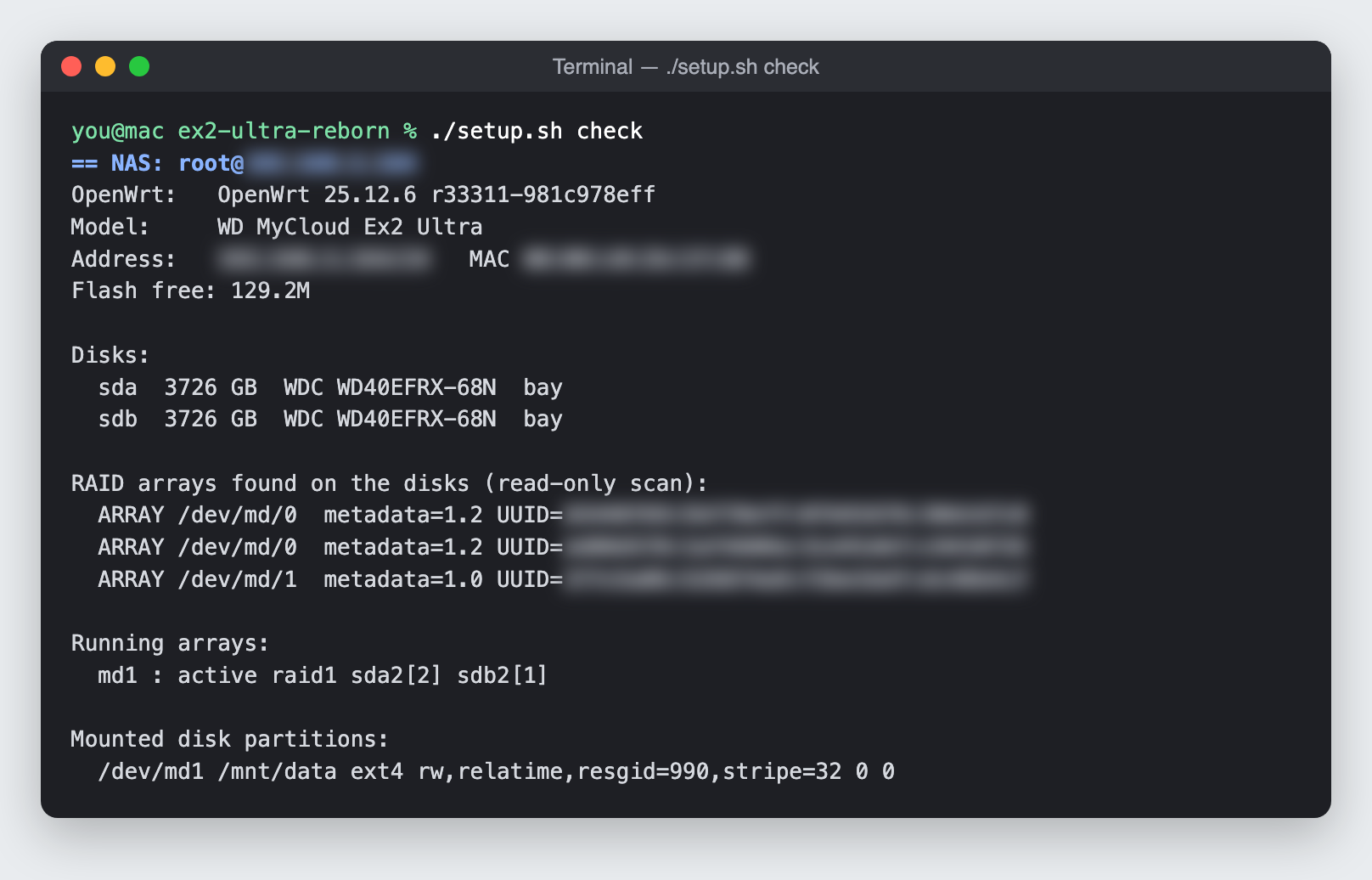
check | Read-only: confirms it's an EX2 Ultra on OpenWrt and lists your disks |
packages | Installs file sharing, RAID tools, disk sleep and friends (a few minutes) |
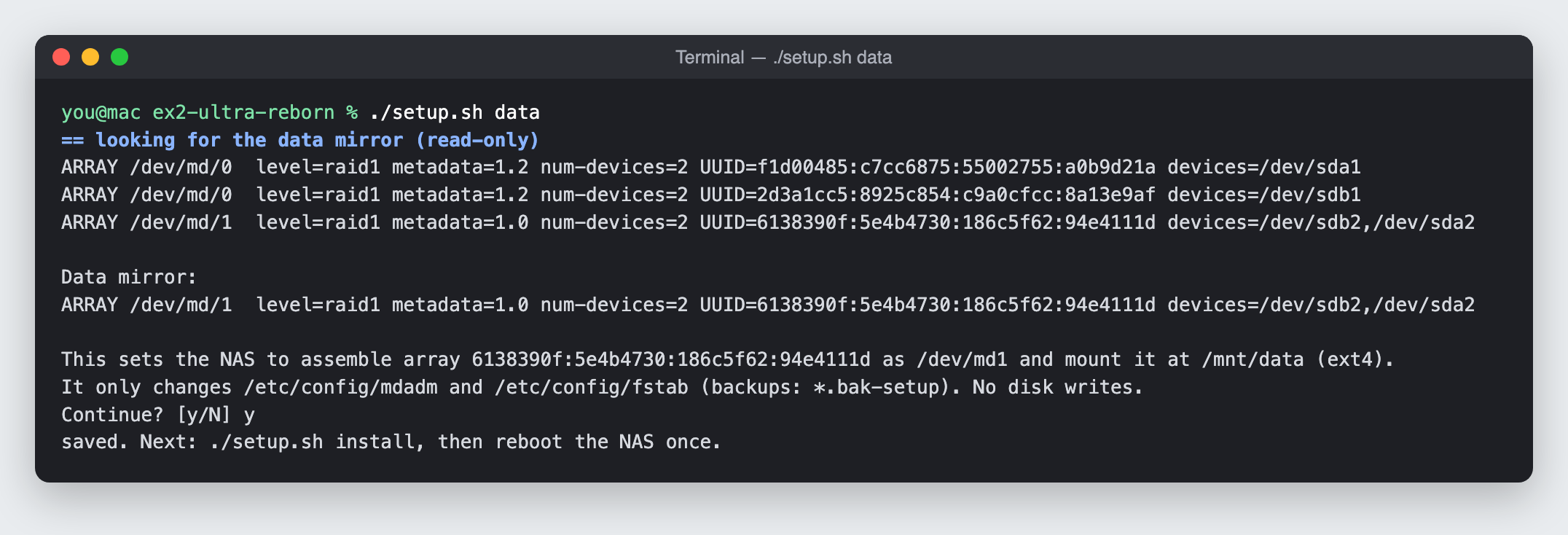
data | Finds your WD RAID 1 mirror and sets it up as /mnt/data. No formatting, no copying. Answer y. |
install | Dashboard, theme, fan control, alerts. Asks for a name for the NAS (nas gives you nas.local). |
check makes sure it's talking to the right box:
data is my favourite step. Your files don't move an inch:
After the reboot: silence. The fan drops to its quiet level.
Part 6: Users, shares and Time Machine (5 minutes)
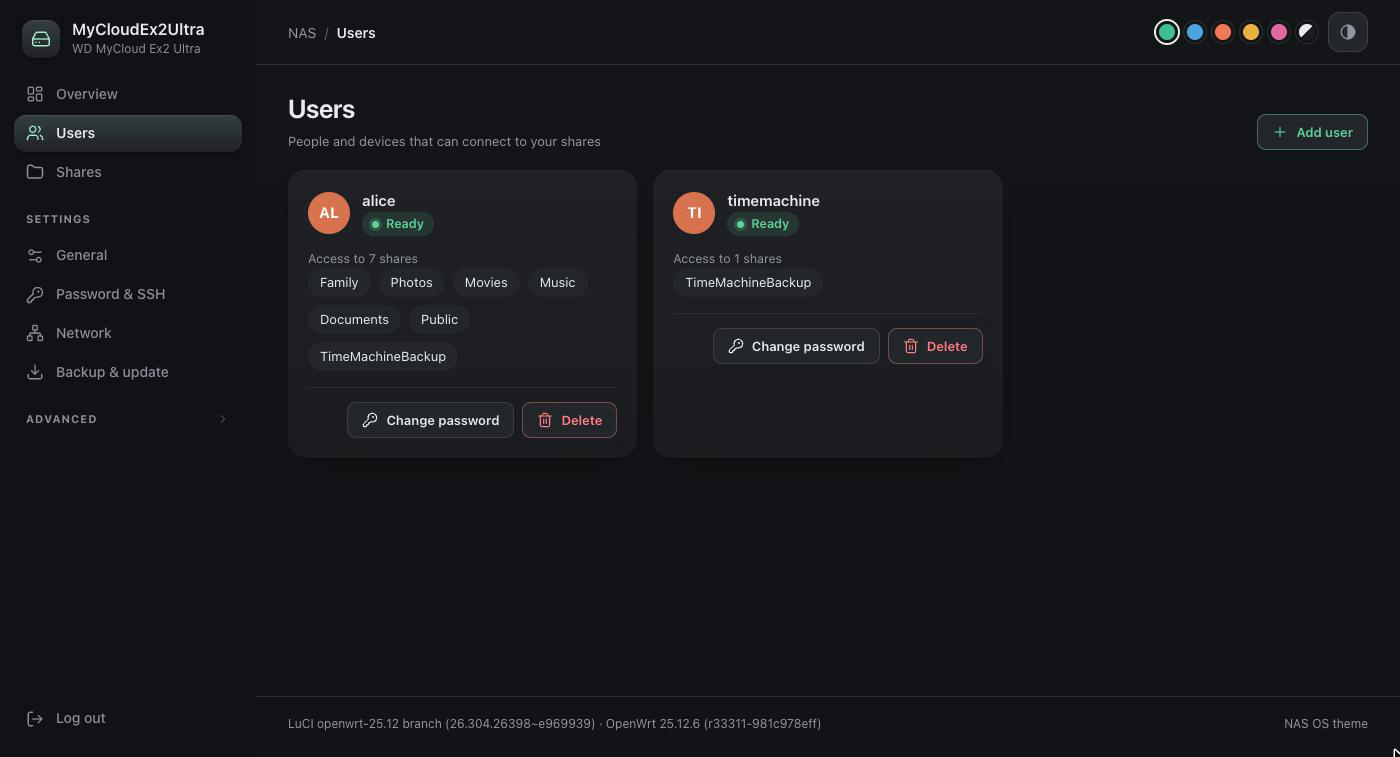
Open http://nas.local in your browser (or http://<NAS IP>), sign in as root with the password from Part 4, then:
- Users → add yourself (and anyone else who should have access).
- Shares → pick folders to share, and tick Time Machine on one for Mac backups.
- On your computer: Finder → Network, or File Explorer → Network.
Part 7: Get e-mail alerts (5 minutes)
A NAS that quietly fails is the worst kind of NAS. So let it e-mail you when something needs attention: a disk drops out of the mirror, a disk runs hot or reports SMART errors, storage gets nearly full, the fan stops, or the NAS restarts unexpectedly. Same problem, one e-mail: it won't flood your inbox.
You need an e-mail account the NAS can send from. Gmail works great, and so does your own domain's mail server.
7.1 Gmail users: create an app password
Gmail won't accept your normal password from a device like this, and that's a good thing. Instead:
- Turn on 2-Step Verification for your Google account (if it isn't already).
- Open myaccount.google.com/apppasswords, create one called
NAS, and copy the 16-character password it shows you.
7.2 Run the alerts step
./setup.sh alerts       # Mac / Linux
.\setup.cmd alerts      # Windows
It asks six questions. On the first run the brackets show placeholders like [smtp.example.com], so type real values instead of just pressing Enter:
| It asks | Gmail | Your own mail server |
|---|---|---|
Send alerts to | where you want the alerts, e.g. you@gmail.com | any address |
SMTP server | smtp.gmail.com | e.g. mail.yourdomain.com |
SMTP port (STARTTLS) | 587 | 587 |
SMTP user | your full Gmail address | your mailbox login |
From address | press Enter (same as the user) | e.g. nas@yourdomain.com |
SMTP password (not shown) | the 16-character app password | your mailbox password |
Use port 587, not 465. The NAS connects with STARTTLS, which is what port 587 speaks. Your mail provider's help page usually lists both, and 587 is the one you want.
It sends a test e-mail right away and prints Sent to you@gmail.com. Check your inbox (and the spam folder, the first time).
If it says Sending failed, the reason is on the NAS: ssh root@<NAS IP> cat /tmp/nas-alert.log. Usually it's a typo in the server name or the password. Just run alerts again: it remembers your answers and shows them in brackets, so you only retype what was wrong.
The password is stored only on the NAS (in a file only root can read), never in the project folder.
Send a test any time: ssh root@<NAS IP> nas-alert test
Part 8: Upgrade to OpenWrt 25.12.6 (5 minutes)
To finish exactly where I am, open http://nas.local/cgi-bin/luci/admin/system/attendedsysupgrade and let it upgrade to 25.12.6. It builds an image with all your packages included, and everything from this project survives the upgrade. Afterwards, run ./setup.sh update (Windows: .\setup.cmd update) once, just to be safe.
That's it. About an hour, mostly waiting, and your files never moved.
Things that bit me (so they don't bite you)
The scripts handle all of these for you. They're still good stories.
The mirror that quietly stopped mirroring. WD's RAID format keeps its bookkeeping at the end of each disk, so each disk on its own looks like a perfectly normal drive. On my first boots, OpenWrt helpfully mounted one disk directly, before the RAID was assembled. Everything looked fine, but only one disk was getting the writes. The fix: only ever mount the assembled mirror, and only after the RAID tools have started.
The 106 °C that wasn't. Notes online said the EX2 Ultra's fan chip reports the board temperature in °C. It doesn't: it reports a raw sensor value where higher means colder. One chilly morning my NAS read "106", and my own overheat protection dutifully switched it off. So I opened up WD's firmware, found the 188-entry table WD uses to convert the value (104 is actually a cosy 35 °C), and borrowed WD's own fan rules while I was in there.
Wake-on-LAN that needed a nudge. I told the network chip "wake on magic packet", and it said "sure". It didn't wake. The chip thought the setting was already on, so Linux skipped the step that actually wires up the wake signal. Turning it off and on again (wol d, then wol g) fixed it. Yes, really. IT's oldest trick, confirmed by reading the chip's registers.
Time Machine "connection refused". Macs try the NAS's IPv6 address first, but the file server was only listening on IPv4. One setting later, backups ran again.
Never rebuild a mirror automatically. I once had a rule that re-added a returning disk to the RAID. That's a great way to overwrite the disk you were keeping as an offline backup. Now rebuilds only happen when you type the command.
PowerShell's little secret. Making the setup work natively on Windows had its own surprise: PowerShell quietly treats binary files as text when you pipe them, so the first upload arrived 2 KB "bigger" and broken. The Windows scripts now use scp, which copies byte for byte.
Windows tar's generous permissions. Windows tar stamps every file "anyone may write". My first Windows test left the dashboard's code, which runs as root, writable by every user on the NAS, and OpenWrt quietly refused to load it. Now the files are locked down after upload. If you set up from Windows before November 2026, run .\setup.cmd update once.
Was it worth it?
Absolutely. As I write this, mine has been up for three and a half days: about 50 MB of RAM in use, the processor at 65 °C, the fan at its quiet level, and both disks asleep. During big jobs, like copying 500 GB to a USB drive, the processor warms up and the fan steps in, exactly as it should.
It's quieter, the dashboard shows exactly what I care about (are both disks OK? how full is it? is the backup running?), and OpenWrt upgrades take one click.
If you've got a WD My Cloud EX2 Ultra gathering dust, or one heading for the end of its support, give it a second life with EX2 Ultra Reborn:
Get EX2 Ultra RebornArgentron-Technologies/ex2-ultra-rebornQuestions, or stuck on a step? Open an issue on GitHub.View repoMade with  by Argentron Technologies Pvt. Ltd. Not affiliated with Western Digital or OpenWrt. "My Cloud" and "WD" are trademarks of Western Digital. Back up your data (and your flash) before you start. You're doing this at your own risk.
Frequently asked questions
Can I install OpenWrt on a WD My Cloud EX2 Ultra?+
Yes. OpenWrt officially supports it (target mvebu/cortexa9, profile wd_cloud-ex2-ultra). This guide uses OpenWrt 25.12.5 for the install and 25.12.6 afterwards.
Will I lose my data?+
No. Flashing only replaces the kernel and system in the NAS's internal flash. Your disks aren't touched, and the setup reuses WD's RAID 1 mirror as it is. Still, back up anything irreplaceable first: you're replacing an operating system.
Does it work with other WD My Cloud models?+
No. The Mirror Gen2, EX2100, EX4100, PR2100 and others use different hardware. The scripts check the WD model number (BVBZ = EX2 Ultra) and refuse to run on anything else.
Can I go back to WD's firmware?+
Yes. That's what the flash backup in Part 2 is for. Keep it safe.
Does Time Machine work? And Windows?+
Yes to both. Macs find the Time Machine share automatically, and Windows shows the NAS under Network in File Explorer. The setup scripts run natively on Windows 10/11 and were tested end to end from PowerShell 5.1, PowerShell 7 and Command Prompt.
Can the NAS send e-mail alerts with Gmail?+
Yes. Create a Google app password (it needs 2-Step Verification), then run the alerts step with smtp.gmail.com, port 587 and your full Gmail address. Part 7 walks through it.
Is the fan really quieter?+
Yes. On mine it idles around 1,900 rpm instead of about 8,800, using WD's own temperature rules, and it speeds up only when something actually gets warm.
What if something goes wrong while flashing?+
As long as the bootloader is intact, the EX2 Ultra can be recovered with a USB stick and a 3.3 V serial adapter. The install guide has the steps.